How to control Bose wireless earbuds: tap, swipe, and press.

Whether you're commuting, working out, or relaxing, controlling your Bose wireless earbuds should feel effortless. With intuitive tap, swipe, press, and voice controls, plus customization through the Bose app, your listening experience adapts to your day. This guide explains how to use and personalize controls of the QuietComfort Earbuds, QuietComfort Ultra Earbuds (2nd Gen), and Ultra Open Earbuds, helping you get the most out of every moment.

Bose Ultra Open Earbuds floating above an open charging case on a lunar rock surface.

Control music playback and calls with tap gestures

Tap is the core gesture across all Bose earbuds. A single tap pauses or plays your music. Double tap and you’ll skip ahead to the next track, a small convenience that makes a big difference when you’re moving through a playlist on your morning commute. If you’re heading back to a favorite song, a triple tap will rewind you there without ever unlocking your phone.


The same pattern applies to calls: tap once to answer, twice to end or decline a call.

Within either the Bose app or the Bose QCE app, you can even personalize what a single, double, triple tap, or touch-and-hold does. You can set gestures differently on each earbud, tailoring control to your style.
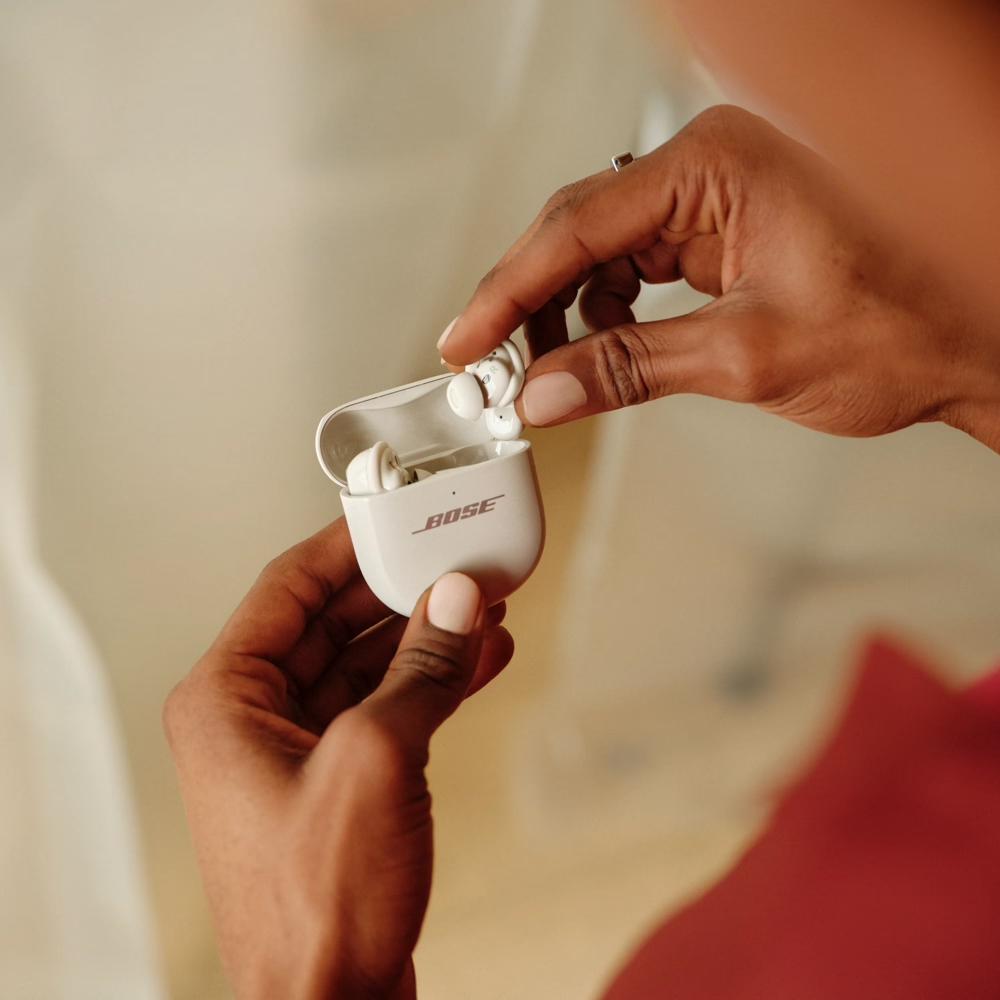

Woman removing a Bose QuietComfort Ultra Earbud (2nd Gen) from the charging case.
Woman exercising outside while listening to music with her Bose Ultra Open Earbuds

Adjust volume with swipes or holds

Volume shifts with your environment, and Bose earbuds make it easy to adapt. When the subway roars as you head into a tunnel, swiping up on QuietComfort Ultra Earbuds (2nd Gen) instantly raises the sound. Step off into a quiet street, and a swipe down lowers it just as quickly. The QuietComfort Earbuds give you similar control with touch-and-hold gestures: right earbud for louder, left for softer. 

Ultra Open Earbuds handle volume with button holds, while Auto Volume in the Bose app can make the adjustments for you. It reacts to your surroundings on its own, so your attention stays on the call you’re taking, the playlist in your ears, or the world moving around you.

Switch noise cancellation modes with press and hold

Sometimes you need quiet, other times you need awareness, and with a simple press-and-hold, your earbuds adapt. On QuietComfort Earbuds, holding either side for one second cycles through QuietAware, and off.

  • Quiet Mode blocks distractions for full focus
  • Aware Mode lets in your surroundings  so you can stay connected to your environment
  • Off conserves battery when you’re listening casually.


The QuietComfort Ultra Earbuds (2nd Gen) build on this with a new addition: Cinema Mode. This immersive mode transforms stereo into theater-like sound, so video feels more lifelike in your ears. Dialogue comes through clearer, background sound stays balanced, and effects spread out in a wider soundstage that feels connected to what you’re watching instead of feeling trapped inside your head. 

Alongside Cinema Mode, the QC Ultra Earbuds (2nd Gen) keep the same core experience as QuietComfort Ultra Earbuds (1st Gen), plus meaningful upgrades for everyday use: improved call quality with background noise suppression (SpeechClarity) to focus on your voice, smoother ActiveSense in Aware Mode, and the option to disable touch controls in the app when you want zero accidental taps.

For Ultra Open Earbuds, press-and-hold is fully customizable. In the app, you decide if it switches devices, cycles Immersive Audio, or brings up your voice assistant.

Person wearing QuietComfort Earbuds while walking in the city.

Use voice commands, Auto Volume, and shortcuts

What makes Bose wireless earbuds stand out is how much control you have beyond the gestures. In the Bose app, you can reset to default settings, create shortcuts, and even assign actions like taking a hands-free photo with your phone’s camera.


Voice control adds another layer of freedom. When the app is running, instruct your QuietComfort Earbuds by saying “Hey headphones” followed by a command. You can accept or reject calls, launch your voice assistant, or request music without lifting a finger.


For environments that shift without warning, the QuietComfort Ultra Earbud series brings in ActiveSense. When turned on, this feature automatically adjusts noise cancellation when the world suddenly spikes in volume, softening the jolt of screeching trains or bursts of traffic so your sound stays steady.


Bose blends into your routine with gestures that handle the small details, making it easier to enjoy quiet moments, keep pace on busy days, and stay connected in between.

Bose earbud controls: designed for everyday use

Controls on Bose earbuds are designed to feel second nature, with every tap, swipe, or press responding instantly. The experience adapts seamlessly, from slipping into Quiet Mode on a long flight to adjusting volume during a ride across town.


Every Bose earbud type delivers controls that feel natural and intuitive, built to match the way you live.


From immersive music to quiet commutes, Bose earbuds give you intuitive control and personalized sound, wherever life takes you.


Explore all Bose wireless earbuds to find the right fit for your routine, and take control of your audio, your way.
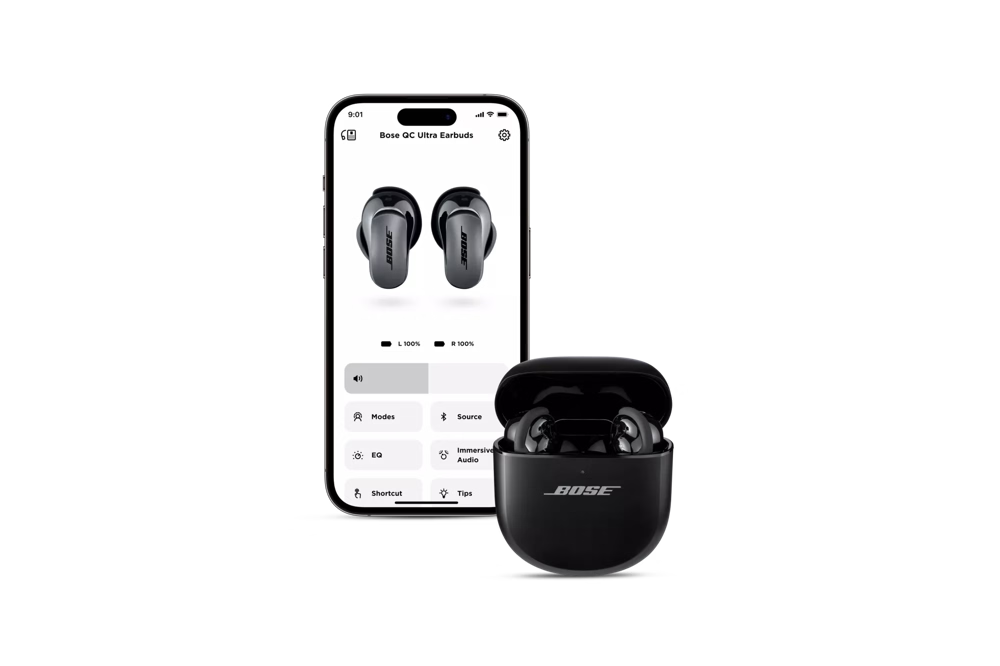
The Bose app displayed on a smartphone and Bose QuietComfort Ultra Earbuds.

FAQs: Controlling Bose wireless earbuds

Can I control Bose earbuds without the app?

Yes. Every pair of Bose wireless earbuds comes with built-in tap, swipe, or press controls for playback, calls, volume, and noise control modes. The Bose app is optional but recommended if you want to customize gestures, create listening modes, or enable features like Auto Volume and ActiveSense.


Do Bose earbuds have voice commands?

Yes. All Bose wireless earbuds support voice control. With the Bose app or Bose QCE app, you can say “Hey headphones” to manage calls, music, or settings. You can also access your phone’s voice assistant (like Siri or Google Assistant) through shortcuts:

  • QuietComfort Earbuds: say “Hey headphones” or assign voice assistant to a touch gesture
  • QuietComfort Ultra Earbuds (2nd Gen): set press-and-hold as a shortcut to launch your voice assistant
  • Ultra Open Earbuds: assign press-and-hold in the Bose app to activate your voice assistant. Once set, just press and hold the button on either earbud to bring up your phone’s assistant.

How do I adjust the volume on Bose earbuds?

It depends on your model:

  • QuietComfort Ultra Earbuds (2nd Gen): swipe up or down on the touch surface
  • QuietComfort Earbuds: tap + hold (right to raise, left to lower)
  • Ultra Open Earbuds: press once, then press and hold the right earbud for louder or the left for softer

For the QuietComfort Ultra Earbuds series, you can also turn on Auto Volume in the Bose app, which adapts sound automatically to your surroundings.


What listening modes can I choose from?

  • QuietComfort Earbuds: Quiet, Aware, off.
  • QuietComfort Ultra Earbuds (2nd Gen): Quiet, Aware, Immersive, plus up to seven custom modes
  • Ultra Open Earbuds: Change Immersive Audio through Still, Motion, and Off.

Can I customize controls on each earbud?

Yes. The Bose app lets you personalize each earbud individually. You can assign basic actions, like having the right earbud skip tracks while the left adjusts volume, or set up shortcuts for quick access to features you use most. That might mean cycling through listening modes, calling up your voice assistant, or even snapping a hands-free photo. And if you ever want to start fresh, you can reset everything back to default in the app.