FALL SALE: Save up to 50% on our best sellers. Shop
Safety and Warranty Tips Before You Troubleshoot
5 Quick Fixes for Headphones, Earbuds, and Bluetooth Speakers
Most audio problems come down to a few simple things: power, volume, distance, Bluetooth memory, or software. Try these in order.
1) Give it a quick charge
Plug in for 10–15 minutes, even if your battery doesn’t look empty.
2) Restart both sides
Power the audio device off and on (headphones, earbuds, or speaker)
Restart your phone/computer too
Quick note if your device got wet: Let it fully dry before charging.
3) Check volume on every layer
Volume can be turned down in more than one place. Make sure it’s up on:
Your headphones/earbuds/speaker
Your phone or computer
The app you’re playing from
4) Reconnect Bluetooth from scratch
Turn Bluetooth off and back on, “forget” the device, then pair it again as if it’s new.
5) Check for firmware or app updates
If your device uses a companion app, open it and check for updates.
How to repair headphones
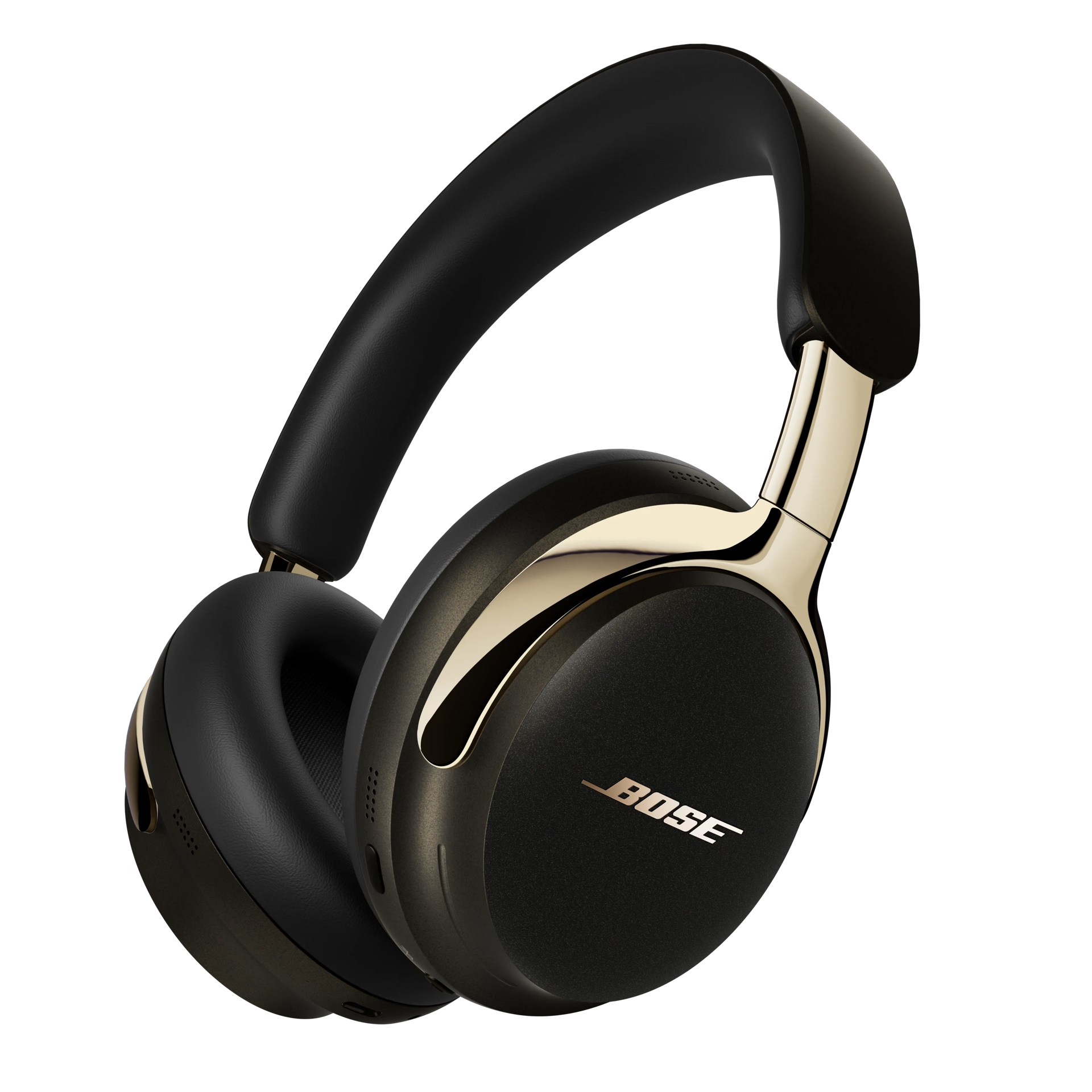
Headphones tend to be steadier than earbuds, but when something goes wrong, it usually falls into a few categories: connection, audio routing, charging, or fit.
When headphones won’t connect
Connection problems often come from old pairing data or a phone that’s holding onto the wrong state.
- Power the headphones off, then on again
- Disconnect any audio cable and charging cable during troubleshooting
- Forget the headphones in Bluetooth settings and re-pair
- Try a second device to see if the issue follows the headphones
When there’s no sound
Sometimes Bluetooth is fine and audio is simply routed somewhere else. Raise the volume on the headphones, phone, and app, then switch apps briefly to confirm audio is actually playing. If you connect to more than one device, pause audio on the other device and try again.

When noise cancellation feels weaker
Noise cancellation depends heavily on seal.
- Confirm you’re in the right listening mode
- Check cushions for wear or compression
Gently clean around mic areas (especially after outdoor use)
When headphones won’t charge
Charging issues are usually about the basics: connection, power source, or temperature.
- Confirm the cable is fully seated at both ends
- Try a different cable and power source
- If the headphones were in extreme heat or cold, let them return to room temperature and try again
Bose Tip: QuietComfort Headphones Troubleshooting
How to repair earbuds
Earbuds pack a lot into a small space, so the most common issues are usually the simplest ones: charging contact points, fit, and a Bluetooth connection that needs a refresh.
When one earbud is not working
This is usually a sync or charging-contact issue. Start by giving the pair a clean reset.
- Put both earbuds in the case and close it for 10 seconds.
- Take them out together and try audio again.
- If one side is still silent, wipe the charging contacts (earbuds and case) and re-pair Bluetooth.
When earbuds sound muffled or uneven
Most of the time, this is buildup or a seal issue. Remove the tips, clean them, and reseat for a snug fit. Then test one other track to rule out the source.
When earbuds keep cutting out
Dropouts are often caused by distance, interference, or switching between devices too quickly.
- Test with only one device connected.
- Keep your phone nearby and try again in a less crowded wireless space.
- If it persists, forget the earbuds in Bluetooth settings and re-pair.
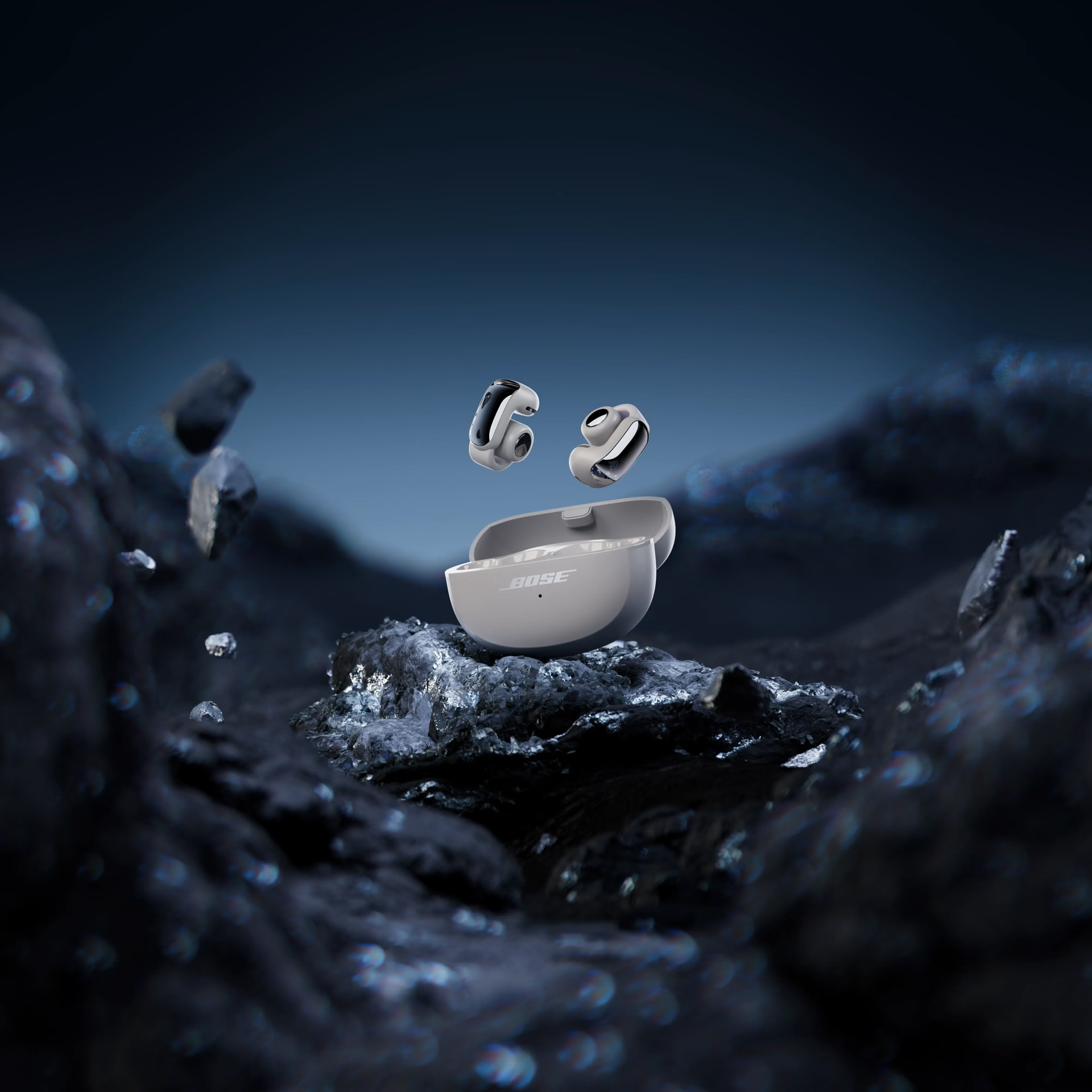
Bose Tip: QuietComfort Earbuds Troubleshooting
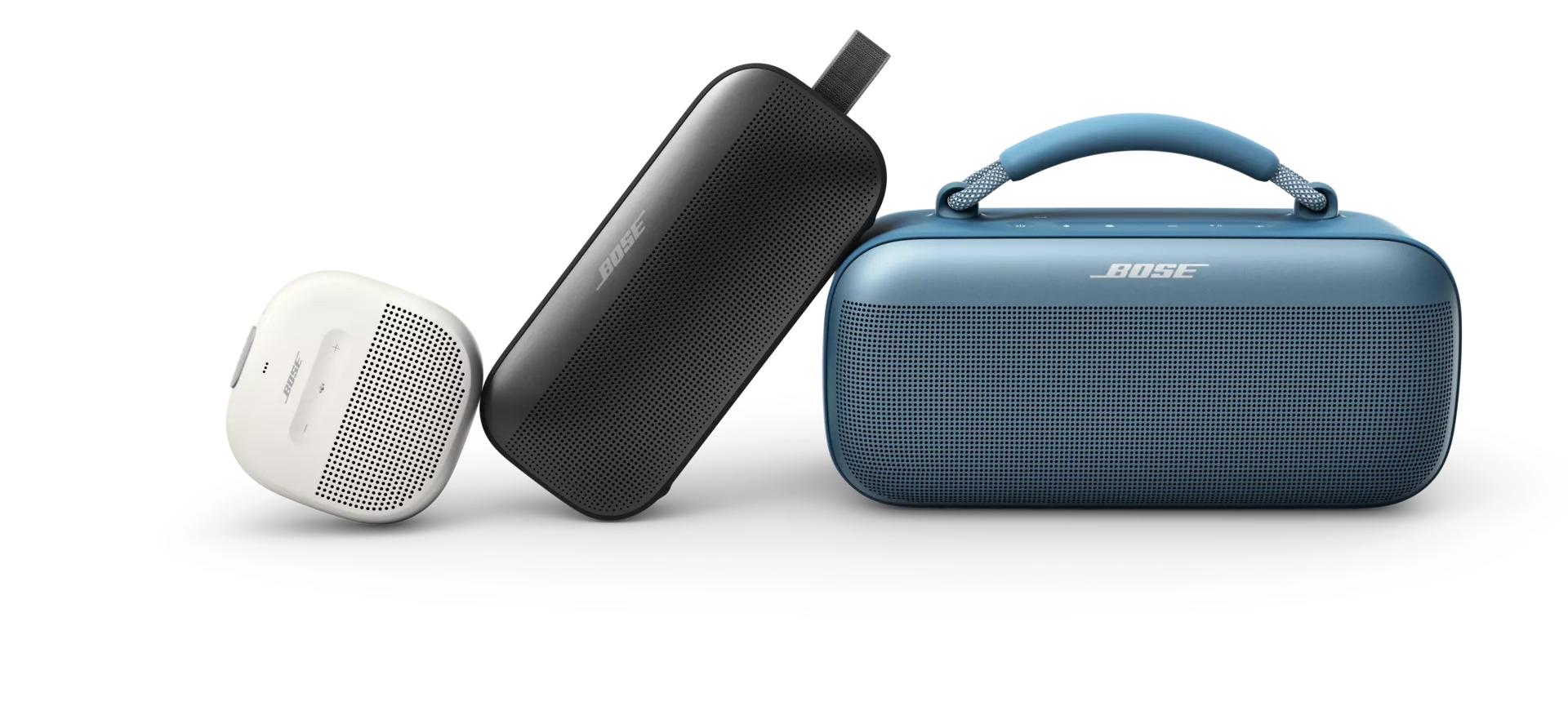
How to repair Bluetooth speakers
Speakers usually run into pairing-list clutter, source confusion, or charging hiccups after travel or outdoor use.
When a speaker won’t connect
This usually comes down to pairing memory. A quick power restart and a clean re-pair will solve most cases.
- Power the speaker off, then on again
- Move your phone closer and try pairing again
- Forget the speaker in Bluetooth settings and re-pair
- If your speaker supports it, clear the speaker’s saved device list

When it connects but there’s no sound
- Turn up volume on the speaker, your phone, and your app
- Confirm you’re playing from the correct source device
- Try a different app or audio source
- If two devices are connected, pause audio on the first device and play from the other
When sound quality is poor or audio feels delayed
If you’re getting a delay or odd sound, it’s often app-related. Close and reopen the app you’re using, then test with one other app. For a quick check, disable audio enhancement settings on your phone and see if clarity or timing improves.
When the speaker won’t charge
Speakers get used in messy places, so charging issues often come from cables, debris, moisture, or temperature.
- Confirm the cable is fully seated and try another cable if available
- Try a different power source
- Let the speaker return to room temperature if it was very hot or cold
- If it was exposed to water, wait until it’s fully dry before charging
Bose Tip: SoundLink Flex Portable Speaker (2nd Gen) Troubleshooting

When to repair vs when to replace
Troubleshooting is worth it when the fix sticks. When it turns into a repeat routine, it’s a different conversation.
Repair makes sense when:
- The issue started recently
- Cleaning, re-pairing, or a reset solves it
- Battery life still feels close to normal
Replacement may be the simpler move when:
- Battery life has dropped noticeably over time
- The same problem returns often even after resets
- Physical wear affects comfort, fit, or charging
- Your needs changed (more calls, more travel, longer days, more outdoor use)
Better sound should feel effortless

Get help fast with Bose Support Hub
Skip the guesswork with Bose’s model-specific troubleshooting, or reach support by chat or phone for expert repair and replacement help.
Trade in your Bose gear for credit
Turn older Bose gear into upgrade credit toward select new products. The Bose Trade In Program offers up to $300 in credit, with a simple process and free trade-in shipping.