NEW COLOR DROP: Get a taste of a vibe-setting shade. Limited edition Sunset Peach. Shop

How to connect a Bluetooth device
Most Bluetooth connections follow the same flow across phones, tablets, and computers:
- Make sure your speaker, headphones, or earbuds have enough battery. Low charge can cause pairing to fail or drop mid-connection.
- Put the device into pairing mode. This usually looks like a blinking light, a tone, or a voice prompt.
- Open Bluetooth settings on your phone, tablet, or computer and keep that screen open while it searches.
- Tap the device name when it appears.
- Confirm it shows as connected, then start playback to make sure audio is routed correctly.
A lot of frustration comes from the words your screen uses. Paired means your phone or laptop recognizes the device and has saved it for later. Connected means audio is actively playing through it. If your device shows as paired but sound still comes from your phone speaker, that’s usually an output-routing issue, and it’s typically a quick fix.
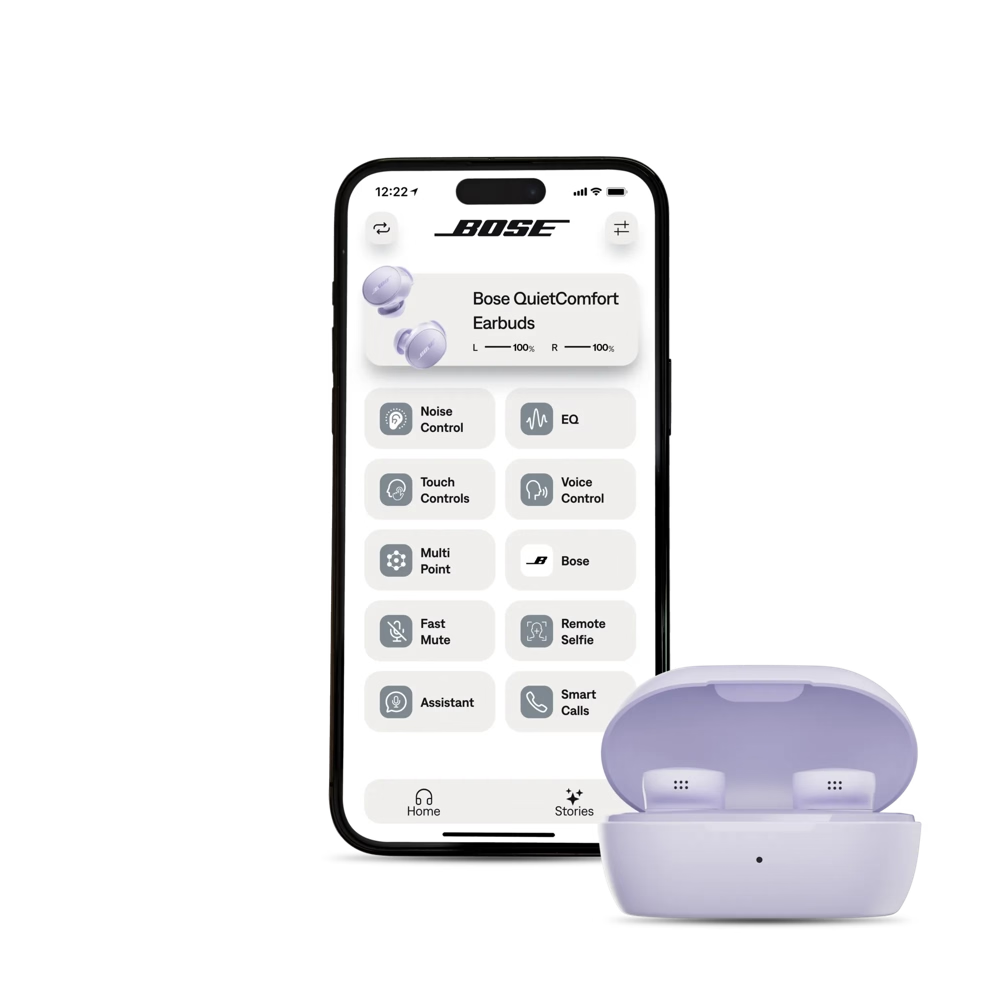

How to connect Bluetooth headphones
Headphones are often the easiest place to start because they have a clear on/off state and a predictable pairing flow. Pair once, then let them reconnect automatically going forward.
A few details that save time:
- Stay close for first-time pairing. Keep your headphones within arm’s reach of your phone or laptop.
- Watch for old connections. If they keep connecting back to a different device, disconnect there first.
- Check audio output on laptops. Many “no sound” issues are just the computer sending audio to internal speakers.
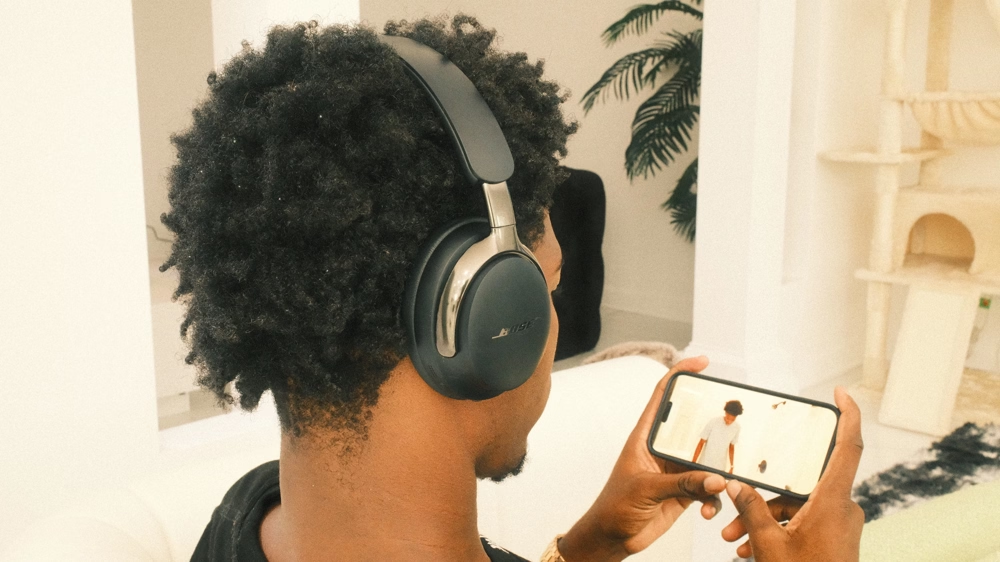
With QuietComfort Ultra Headphones (2nd Gen), switching is smoother because they support Bluetooth multipoint connectivity, so you can stay connected to two devices at once, like your phone and your laptop. They also feel more automatic day to day: on-head detection helps them start up faster when you put them on, and they drop into low-power standby when you set them down. If you want manual control, the Bluetooth/power button gives you a clean on/off and a quick reset when needed.
When Bluetooth isn’t available

How to connect Bluetooth earbuds
Earbuds connect the same way as headphones, but they’re used in faster-moving moments, like stepping outside, moving between rooms, or switching from music to a call mid-task. That’s also when Bluetooth can feel most fragile.
A few earbud fixes that work:
- Use the case to reset. Put both earbuds back in the case for a few seconds, then take them out again.
- Forget and re-pair if needed. If your earbuds show up but refuse to connect, remove them from your device’s Bluetooth settings and pair again.
- Stay mindful of crowded environments. Busy stations and offices can cause interference. Keeping your phone close helps.
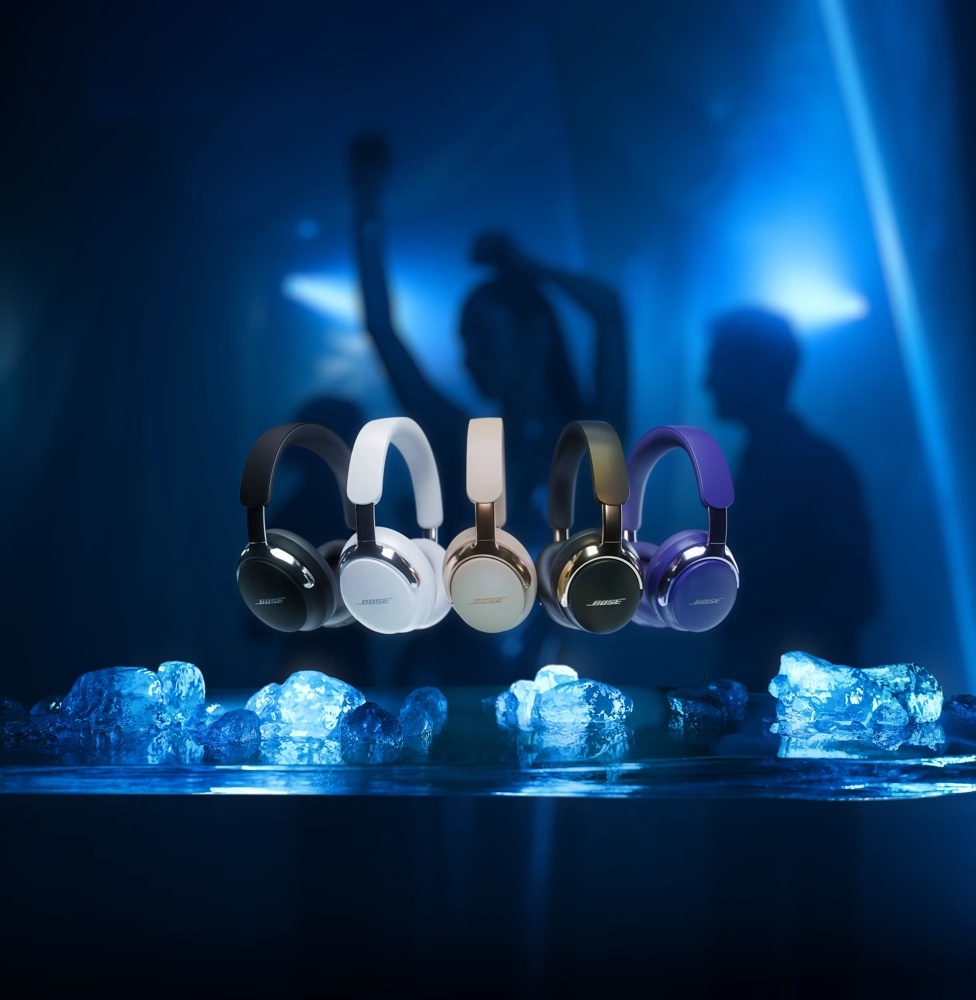
QuietComfort Ultra Earbuds (2nd Gen) also support multipoint connectivity that helps keep switching smoother between two devices. Once connection is stable, features like CustomTune, Immersive Audio, and Cinema Mode make everyday listening and video feel more engaging, with clearer dialogue and a more spacious presentation.
Quick tip: If audio plays from the wrong device, pause, select your earbuds from the Bluetooth menu on the device you want, then press play again. That handoff is often faster than re-pairing.
How to connect a Bluetooth speaker
Speakers are made for sharing, so connections change hands more often. If a speaker keeps jumping back to a previous phone, it’s usually doing what it was last told to do. A quick, intentional handoff solves it.
- Start with one device. Connect first, press play, and confirm the speaker is the active output.
- Switch on purpose. Disconnect from the first phone (or toggle Bluetooth off there briefly), then connect from the new device.
- Keep it in the open. Place the speaker away from cabinets and tight corners for a stronger signal.
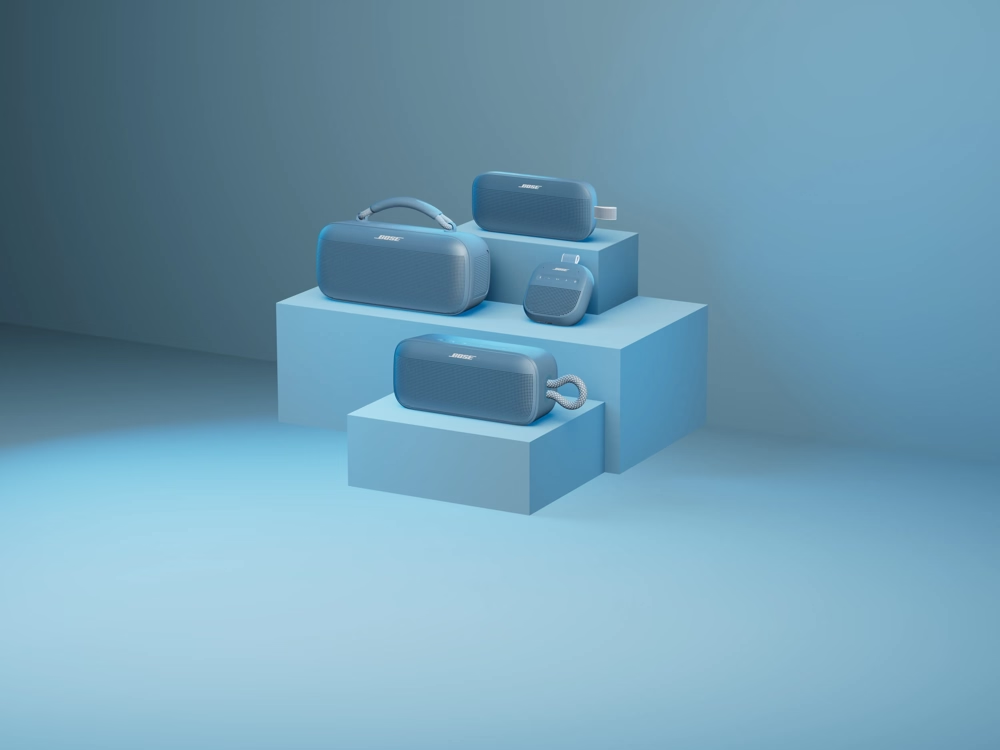
With the SoundLink Plus Portable Speaker, Bose builds the connection experience for modern group listening. It can remember up to six devices, which makes passing the music around feel easy in a group setting. If you want to start fresh, turn on the speaker and press and hold the Bluetooth button for 15 seconds to clear the list. You can also remove paired devices in the Bose app under product settings.
If you want to take it a step further, the SoundLink Plus Portable Speaker can pair with other SoundLink speakers to play on two speakers at once. Party Mode powerfully plays the audio same audio simultaneously, while Stereo Mode lets you hear balanced, leveled sound from each source. It’s an easy way to boost the room without changing how you connect.
How to reset Bluetooth connections
When Bluetooth gets stuck in a loop, a reset clears it faster than guessing. Start there and move on to further troubleshooting steps if needed:
- Toggle Bluetooth off and on your phone or computer.
- Restart your phone or computer.
- Turn your headphones, earbuds, or speaker off and back on.
- If it still won’t connect, select the device in Bluetooth settings, choose Forget, then pair again.
Troubleshooting: Common Bluetooth problems (and quick fixes)
How to connect Bluetooth earbuds
If your headphones, earbuds, or speaker has a companion app, it can save you time when Bluetooth gets finicky. For Bose products, the Bose app is that control center, helping you set up your gear quickly, manage settings in one place, and get back to listening with less trial and error.
In the Bose app, you can:
- Reconfirm setup and connection status so you know your product is ready to pair and connect
- Manage Bluetooth handoffs more smoothly when you’re moving between devices (especially on products with Bluetooth multipoint connectivity)
- Update your product software to improve performance and connection stability over time
- Restore your preferred settings quickly (like noise cancellation modes, Adjustable EQ, and shortcuts) after a reset, so your headphones or earbuds feel “back to normal” fast
Once things are stable, the Bose app still adds value day to day, letting you personalize your listening, access features like Immersive Audio on supported products, and control music and presets across your Bose products in one place.
When troubleshooting isn’t enough: it might be time to upgrade